Introduction
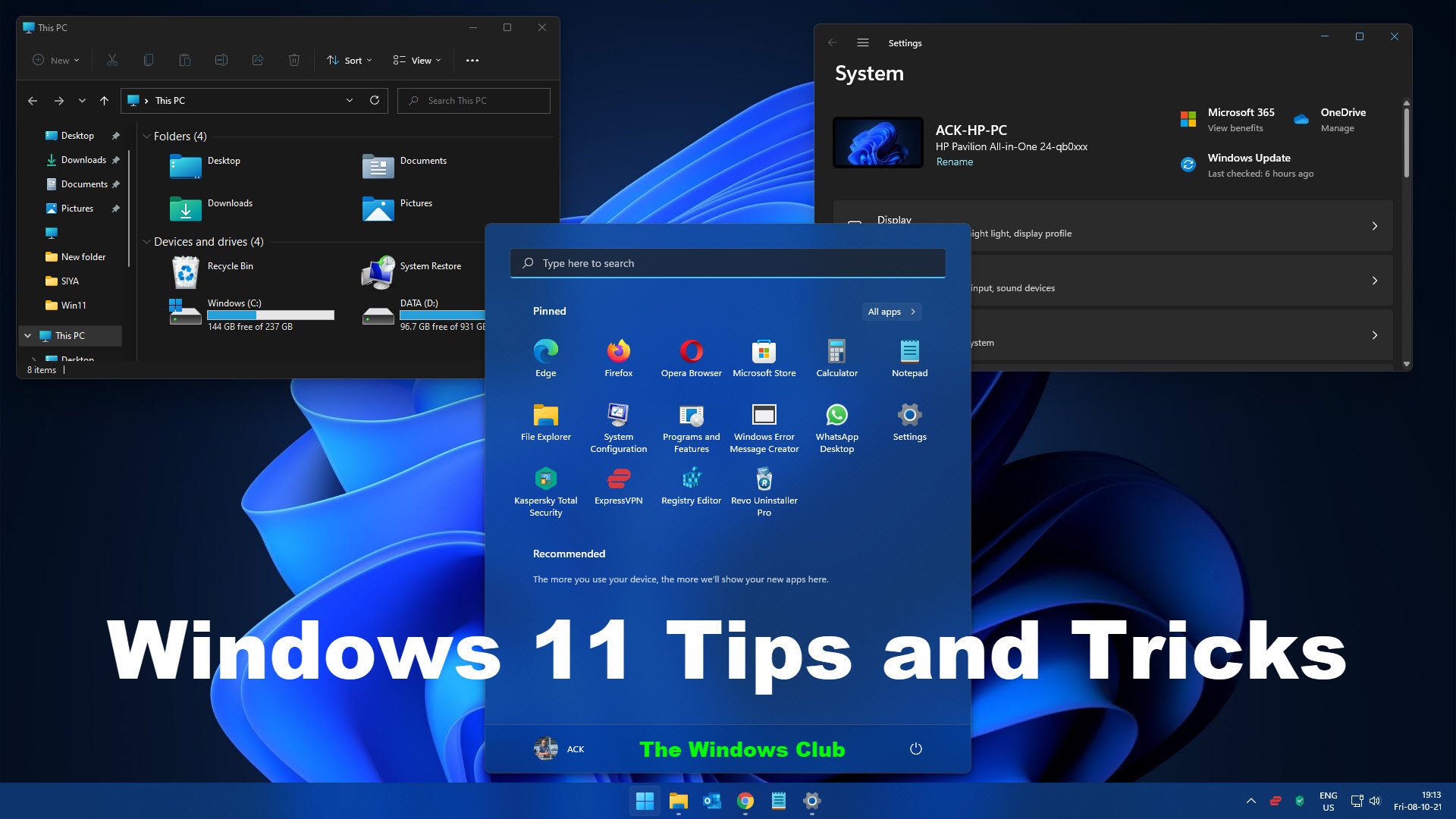
Windows 11 has evolved into one of the most powerful operating systems for both professionals and casual users. With improved multitasking capabilities, better security, AI-powered features, and enhanced customization options, Windows 11 offers numerous ways to increase productivity.
However, many users only utilize a small portion of the operating system’s capabilities. Hidden features, advanced settings, and productivity tools often remain undiscovered, resulting in missed opportunities to save time and work more efficiently.
In this guide, you’ll learn the 25 best Windows 11 tips and tricks that can significantly improve your workflow, boost performance, and help you get more done in less time.
1. Use Snap Layouts for Better Multitasking
Snap Layouts is one of the most useful productivity features in Windows 11.
Simply hover your mouse over the maximize button to view different window arrangements. You can instantly organize multiple applications side by side without manually resizing windows.
Benefits:
- Better multitasking
- Cleaner desktop workspace
- Faster workflow management
2. Master Virtual Desktops
Virtual Desktops allow you to create separate workspaces for different tasks.
For example:
- Desktop 1: Work
- Desktop 2: Personal projects
- Desktop 3: Entertainment
Press:
Windows + Tab
Then click “New Desktop.”
This helps reduce distractions and keeps your workflow organized.
3. Learn Essential Keyboard Shortcuts
Keyboard shortcuts can save hours every week.
Important shortcuts include:
- Windows + D = Show desktop
- Windows + E = Open File Explorer
- Windows + L = Lock PC
- Windows + V = Clipboard history
- Windows + Shift + S = Screenshot tool
- Alt + Tab = Switch apps
The more shortcuts you learn, the less time you’ll spend navigating menus.
4. Enable Clipboard History
Many users copy and paste dozens of items daily.
Windows 11 includes Clipboard History, which stores multiple copied items.
To enable:
Settings → System → Clipboard → Clipboard History
Shortcut:
Windows + V
This feature is a huge productivity booster.
5. Use Focus Sessions
Focus Sessions help eliminate distractions while working.
Features include:
- Built-in timer
- Task tracking
- Focus reminders
Open the Clock app and start a Focus Session before beginning important work.
6. Customize the Quick Settings Panel
The Quick Settings menu provides instant access to:
- Wi-Fi
- Bluetooth
- Brightness
- Volume
- Airplane Mode
Remove unused options and add frequently used controls for faster access.
7. Pin Frequently Used Apps
Don’t waste time searching for apps.
Pin important applications to:
- Taskbar
- Start Menu
Recommended apps:
- Browser
- Microsoft Office
- Teams
- Photoshop
- File Explorer
This can save countless clicks every day.
8. Use Windows Search Efficiently
Windows Search is faster and smarter than ever.
Press:
Windows Key
Then start typing:
- Files
- Settings
- Applications
- Documents
You can launch almost anything instantly.
9. Enable Dark Mode
Dark Mode reduces eye strain and improves focus during long work sessions.
Enable it:
Settings → Personalization → Colors → Dark
Many professionals prefer Dark Mode because it creates a cleaner working environment.
10. Turn On Storage Sense
Storage Sense automatically removes unnecessary files.
Benefits:
- More disk space
- Better performance
- Reduced clutter
Enable:
Settings → System → Storage → Storage Sense
11. Use Widgets Wisely
Windows 11 Widgets provide quick access to:
- Weather
- News
- Calendar
- Stocks
- Tasks
Customize them to show only information relevant to your workflow.
12. Organize Files with OneDrive
OneDrive integration helps you:
- Backup files automatically
- Sync documents across devices
- Access files anywhere
Cloud storage reduces the risk of losing important data.
13. Keep Startup Programs Under Control
Too many startup applications slow down your PC.
Check startup apps:
Settings → Apps → Startup
Disable programs you don’t need immediately after booting.
This improves startup speed significantly.
14. Use Voice Typing
Voice Typing has become remarkably accurate.
Press:
Windows + H
Speak naturally and Windows converts speech into text.
Perfect for:
- Emails
- Reports
- Notes
- Blog drafts
15. Create Custom Keyboard Shortcuts
You can assign shortcuts to frequently used applications.
Steps:
- Right-click app shortcut
- Open Properties
- Add shortcut key
This helps launch applications instantly.
16. Take Screenshots Faster
Windows 11 includes powerful screenshot tools.
Press:
Windows + Shift + S
Capture:
- Full screen
- Window
- Freeform area
- Rectangular area
Ideal for tutorials and presentations.
17. Use Nearby Sharing
Nearby Sharing allows quick file transfers between Windows devices.
Enable:
Settings → System → Nearby Sharing
Useful in offices and home workspaces.
18. Manage Notifications
Constant notifications can destroy productivity.
Go to:
Settings → System → Notifications
Disable unnecessary alerts and keep only important notifications enabled.
19. Use File Explorer Tabs
File Explorer now supports tabs.
Benefits include:
- Less desktop clutter
- Easier file management
- Faster navigation
Use tabs the same way you use browser tabs.
20. Improve Battery Efficiency
Laptop users should optimize battery settings.
Navigate to:
Settings → Power & Battery
Enable:
- Battery Saver
- Power Efficiency Mode
This increases battery life without sacrificing usability.
21. Customize Taskbar Settings
The Windows 11 taskbar can be customized to fit your workflow.
Options include:
- Align icons left
- Hide unused icons
- Show taskbar badges
A cleaner taskbar improves navigation speed.
22. Use Microsoft Copilot
AI integration has become one of Windows 11’s strongest features.
Microsoft Copilot can help with:
- Writing
- Research
- Summaries
- Productivity tasks
- Problem solving
Learning to use AI effectively can dramatically improve efficiency.
23. Enable Dynamic Refresh Rate
For supported displays, Dynamic Refresh Rate improves responsiveness while preserving battery life.
Benefits:
- Smoother scrolling
- Better performance
- Improved efficiency
Find it under Display Settings.
24. Keep Windows Updated
Updates provide:
- Security improvements
- Bug fixes
- New features
- Performance enhancements
Check regularly:
Settings → Windows Update
An updated PC runs more efficiently and securely.
25. Create a Productivity-Focused Desktop Setup
Your workspace matters.
Recommendations:
- Use dual monitors
- Organize desktop icons
- Maintain a clean wallpaper
- Keep frequently used files accessible
A well-organized digital workspace increases focus and efficiency.
Bonus Productivity Tips
Here are additional habits that complement Windows 11 features:
Follow the Two-Minute Rule
If a task takes less than two minutes, do it immediately.
Batch Similar Tasks
Group similar activities together to reduce mental switching.
Use Cloud Backups
Regular backups protect your work and save time in emergencies.
Declutter Weekly
Remove unnecessary files and organize folders every week.
Final Thoughts
Windows 11 is packed with features designed to help users work smarter, not harder. By implementing these 25 productivity tips and tricks, you can streamline your workflow, reduce distractions, improve system performance, and make better use of your time.
Whether you’re a student, freelancer, content creator, office worker, or business owner, these Windows 11 tricks can significantly enhance your daily computing experience in 2026.
Start by applying just a few of these tips today, and you’ll quickly notice improvements in both productivity and efficiency.